Permissions & connections · Step 9 / 12
Spotify, controlling your Mac, and web search
Connect Spotify and Antigravity web search on your account page. Mac control is set in GameTerm and in macOS.
Your account page on arkey.ai has a Connections section. A connection is a service GameTerm can use. It works on every Mac you sign in on. The logins are stored encrypted on arkey.ai. They are never shown again.
Sign in on arkey.ai. Open your account page. Click Connections on the left.
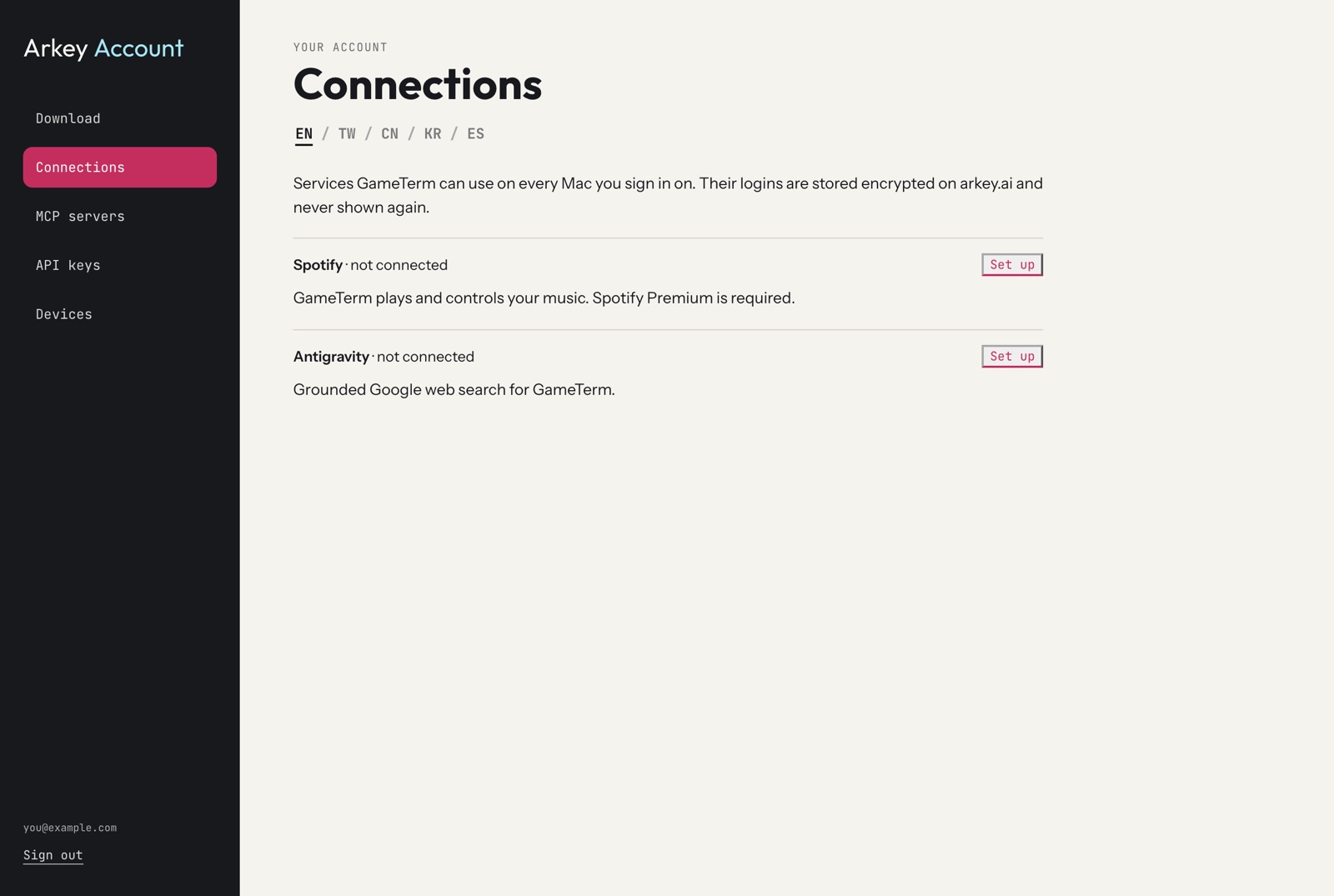
Spotify
GameTerm can play and control your music. You need Spotify Premium.
Press Set up next to Spotify. The page shows six steps. You do them one time.
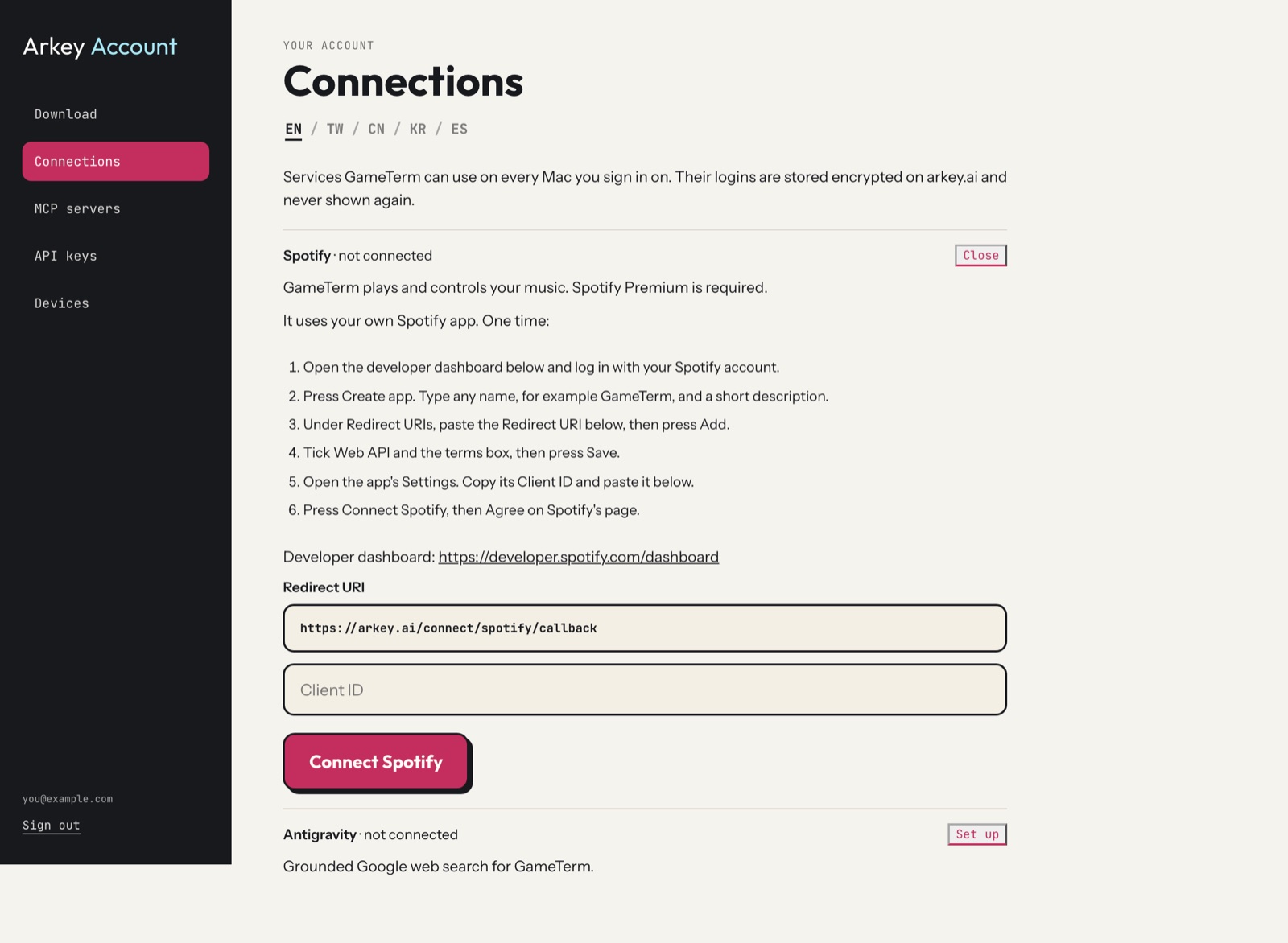
- Open the Spotify developer dashboard. The link is on the page. Log in with your Spotify account.
- Press Create app. Type any name, for example GameTerm, and a short description.
- Under Redirect URIs, paste the Redirect URI from the account page. Press Add.
- Tick Web API and the terms box. Press Save.
- Open the app's Settings. Copy its Client ID. Paste it into the account page.
- Press Connect Spotify. Press Agree on Spotify's page.
Web search with Antigravity
GameTerm can search the web with Google. It uses your own Google Antigravity login.
Press Set up next to Antigravity. The page shows four steps.
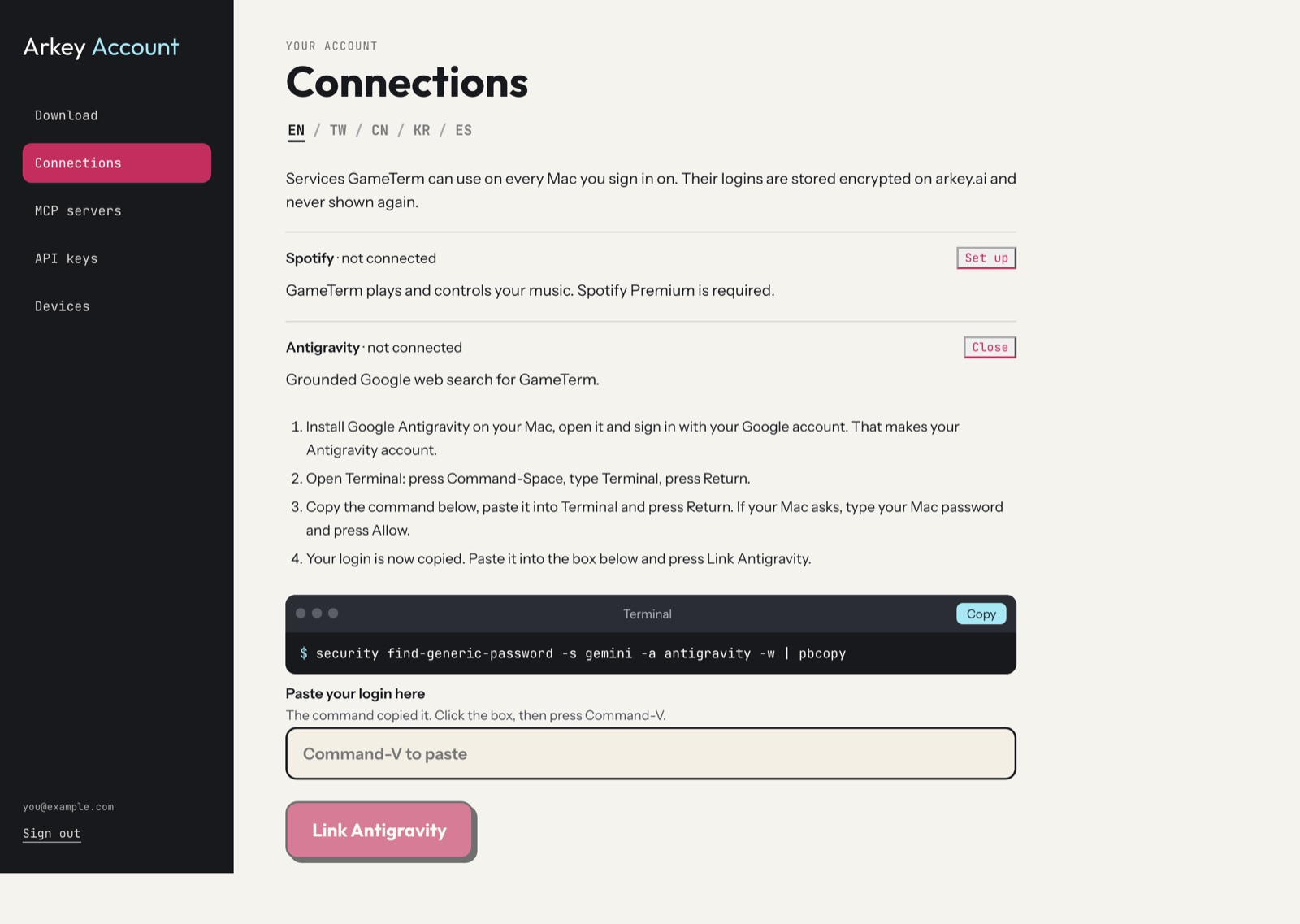
- Install Google Antigravity on your Mac. Open it. Sign in with your Google account.
- Open Terminal. Press Command and Space, type Terminal, and press Return.
- On the account page, press Copy next to the command. Paste it into Terminal. Press Return. If your Mac asks, type your Mac password and press Allow.
- Your login is now copied. Click the box on the account page. Press Command and V. Press Link Antigravity.
Check it in GameTerm
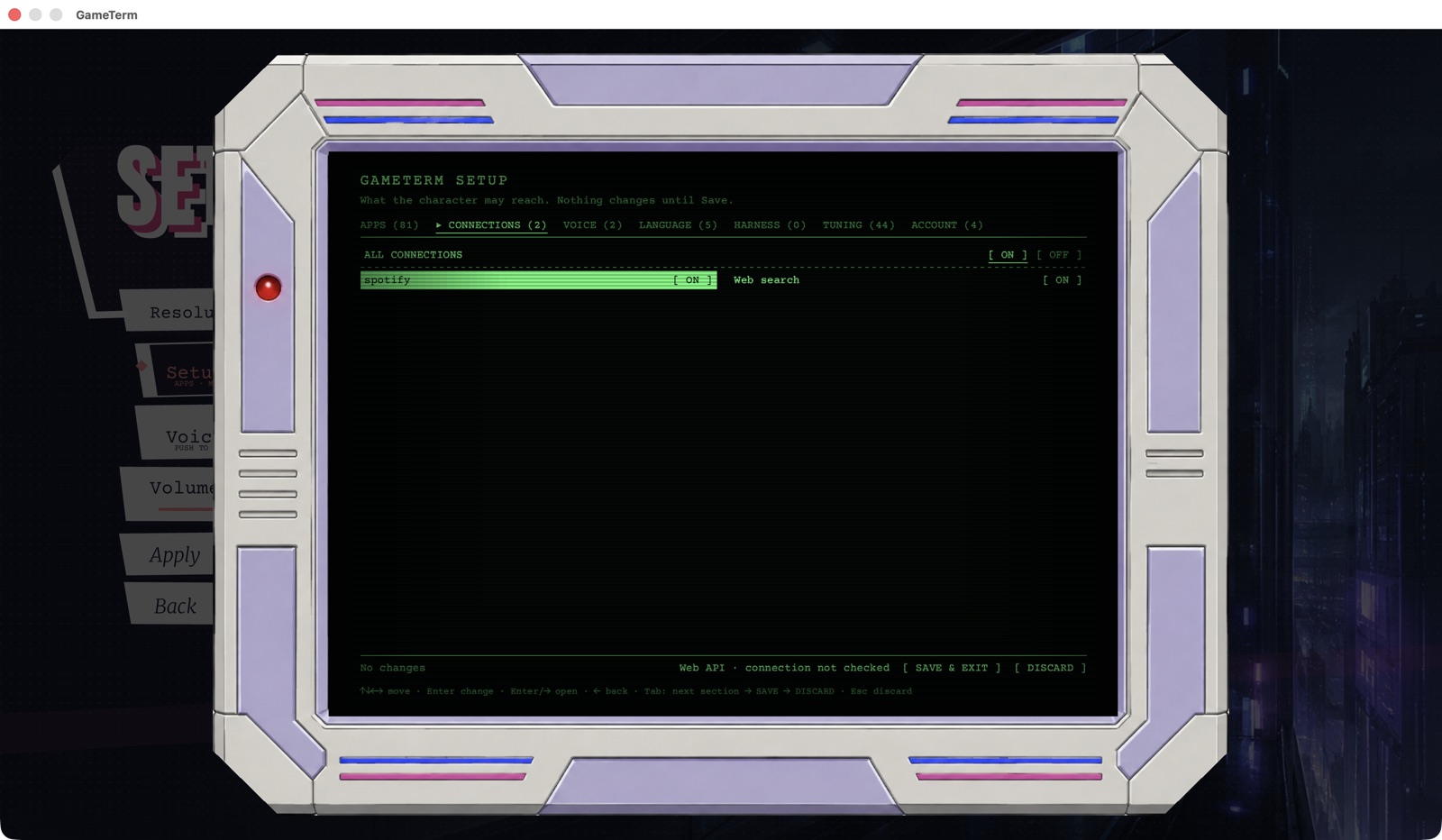
In GameTerm, open Settings, then Setup, then the CONNECTIONS tab. Spotify and Web search are listed there. Each one is ON or OFF.
Controlling your Mac
Controlling your Mac is not on the account page. It is set in two places:
- In macOS: the Accessibility and Automation permissions. Setup's ACCOUNT tab shows them. Step 8 shows that tab.
- In GameTerm: the APPS tab in Setup. Each app is ON, ASK or OFF.
With these on, the character can open apps and arrange their windows for you.
The next step switches the language.