Use GameTerm · Step 5 / 12
Pick a character and talk to it
Choose a character on Character Select, start a New Session, and type or speak to it.
1. Pick a character
On the title menu, choose Character Select. There are three characters: Astro, Bridget S. Lane and Leo.
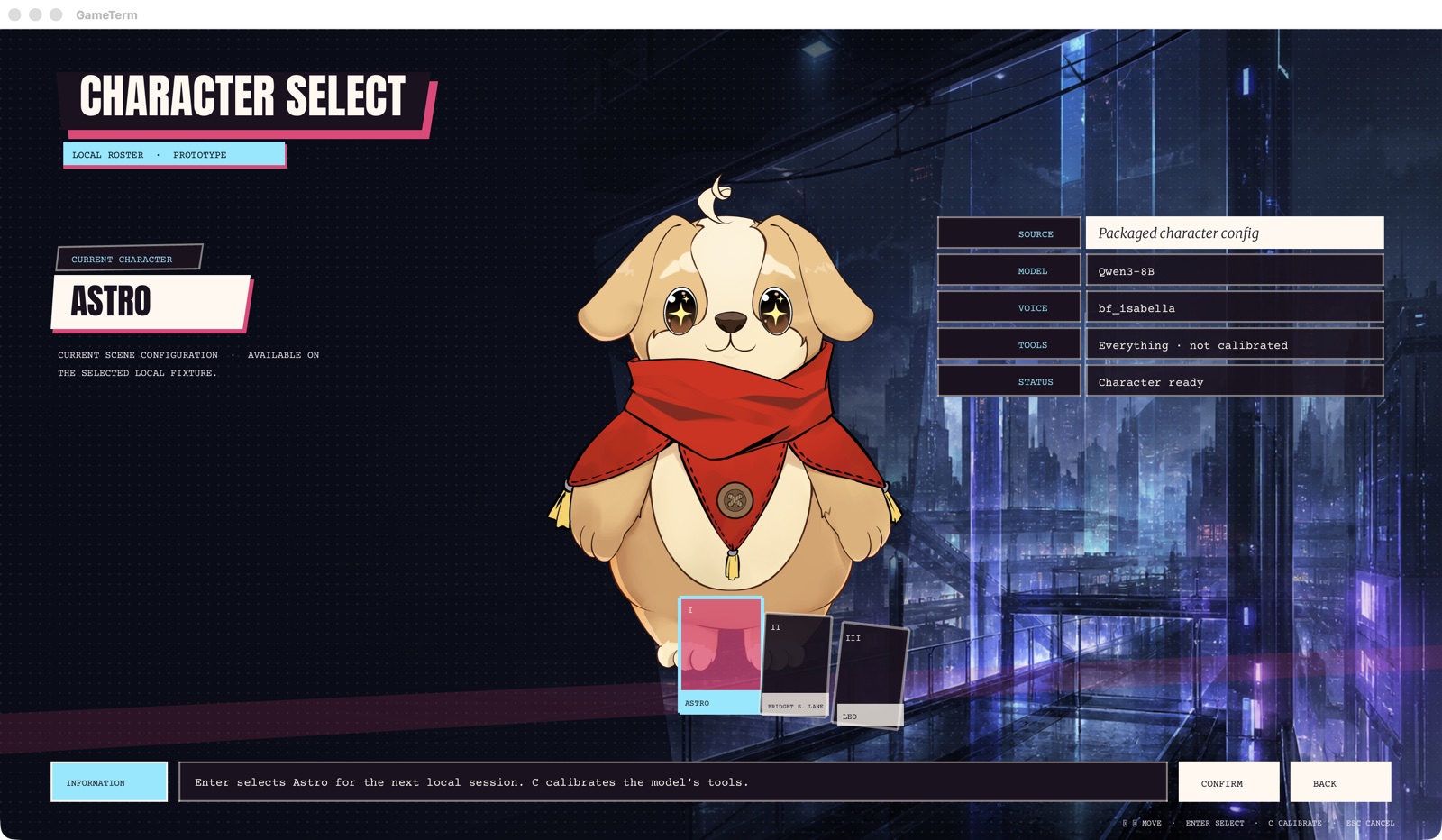
- Astro is the one who explains things.
- Bridget is the one who gives you the real answer.
- Leo is the one who asks who owns it.
Click a card, or move to it with the arrow keys. Press Return to choose it. You go back to the title menu.
2. Start a New Session
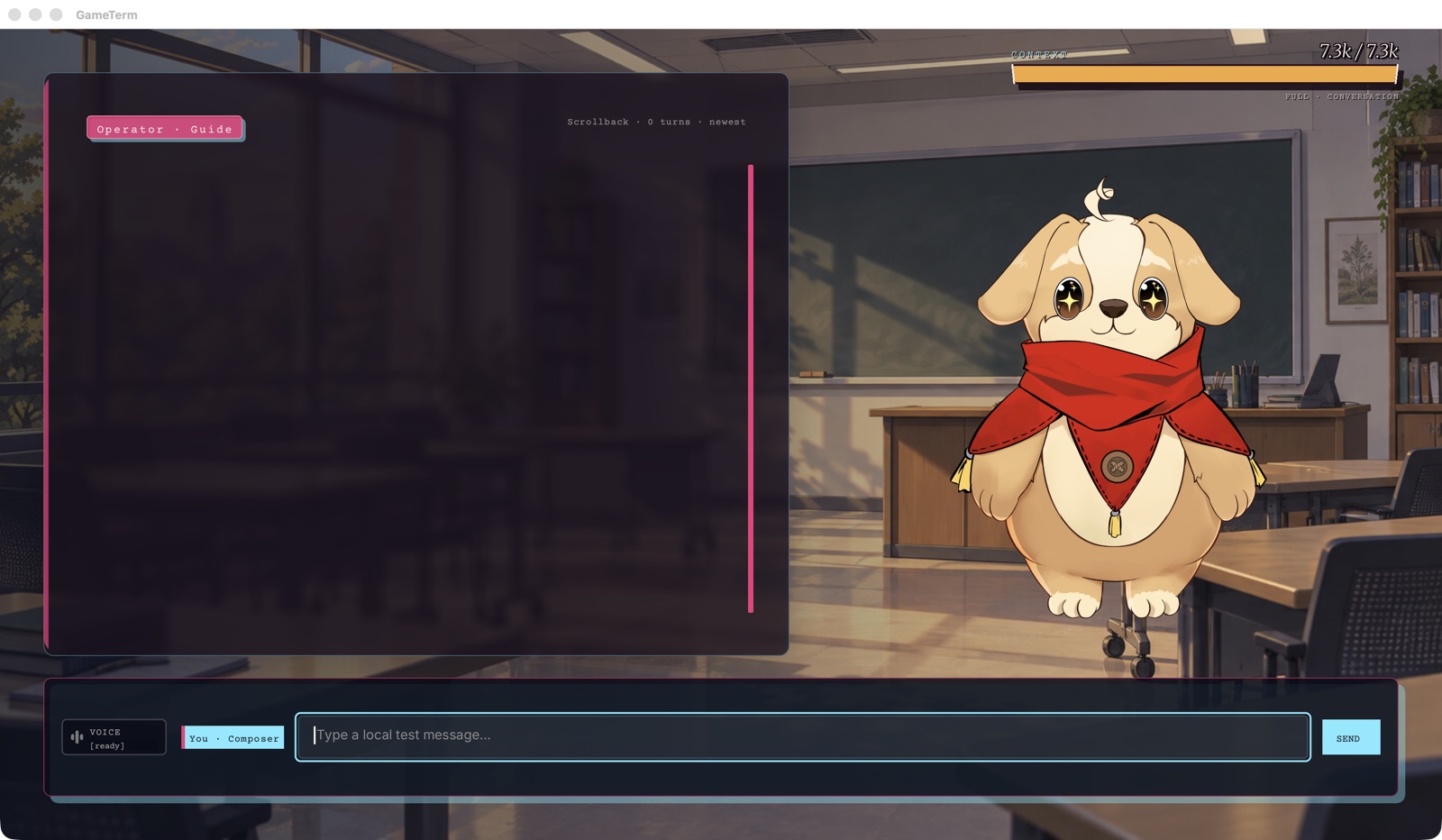
On the title menu, choose New Session. The scene opens. The character stands on the right. The conversation is on the left. The box at the bottom is where you type.
3. Type a message
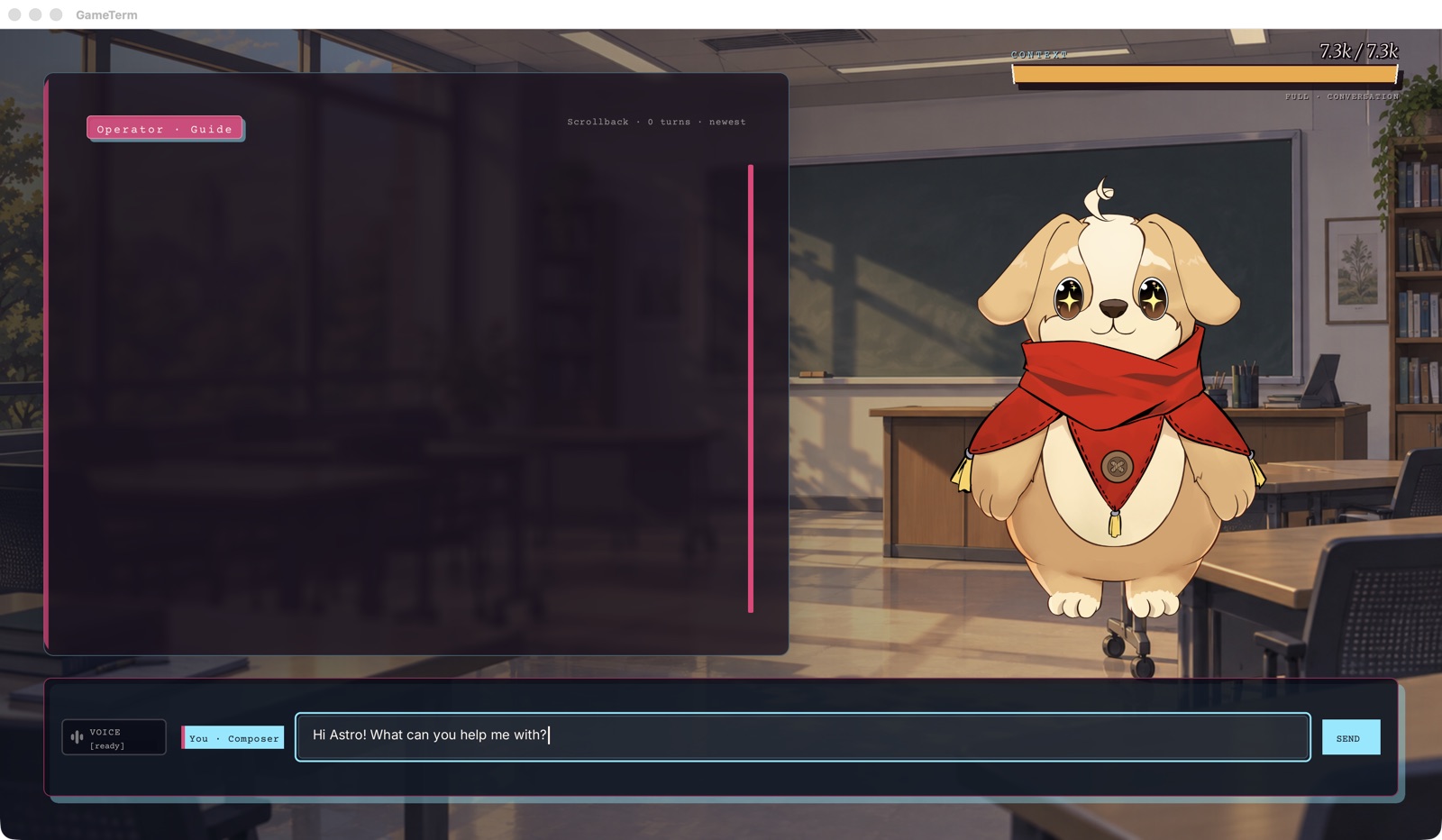
Click the box at the bottom. Type your message. Press Return, or press SEND.
4. The character answers
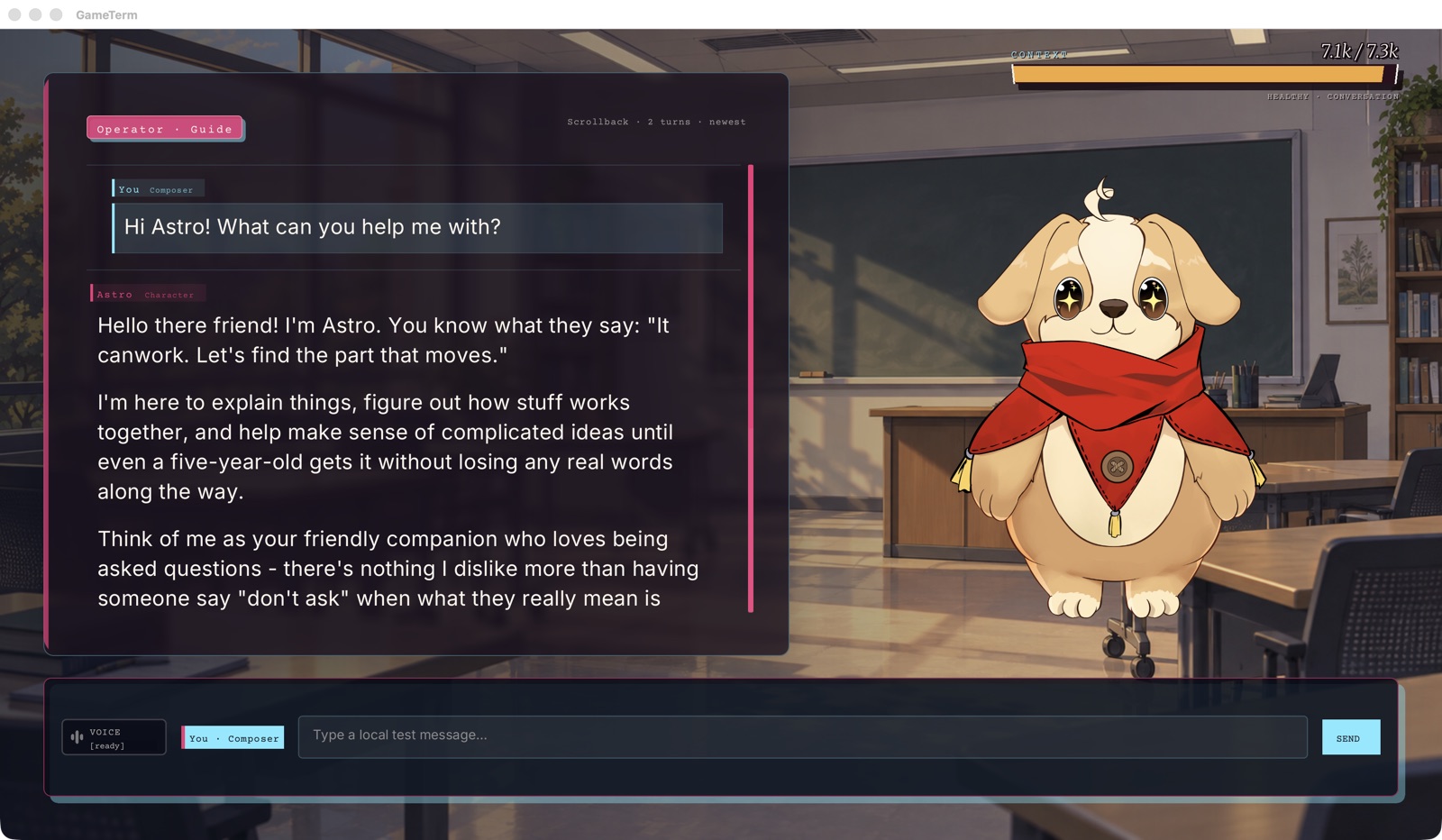
The character thinks for a moment. Then the answer appears on the left.
Speak instead of typing
Hold the Command key and the V key while you speak. Let go when you finish. You can also click VOICE to start and click it again to stop. The Microphone permission must be on.
The Context bar
The bar at the top right shows how much the character can remember in this conversation. Step 6 shows how to make room with /compact.
The next step shows the / commands.