Use GameTerm · Step 7 / 12
Pick a model
The model is the AI that writes the character's answers. You choose it on Character Select, when you have more than one.
A bigger model gives better answers. A bigger model also needs more memory and more time.
You need more than one model
The model bar only shows when your Mac has more than one model. With one model, there is nothing to choose, and the bar is hidden.
You get more models from the installer. On the install list, the extra models start turned off. Their rows say This model is not offered on Character Select. Turn one on with Space, then install.
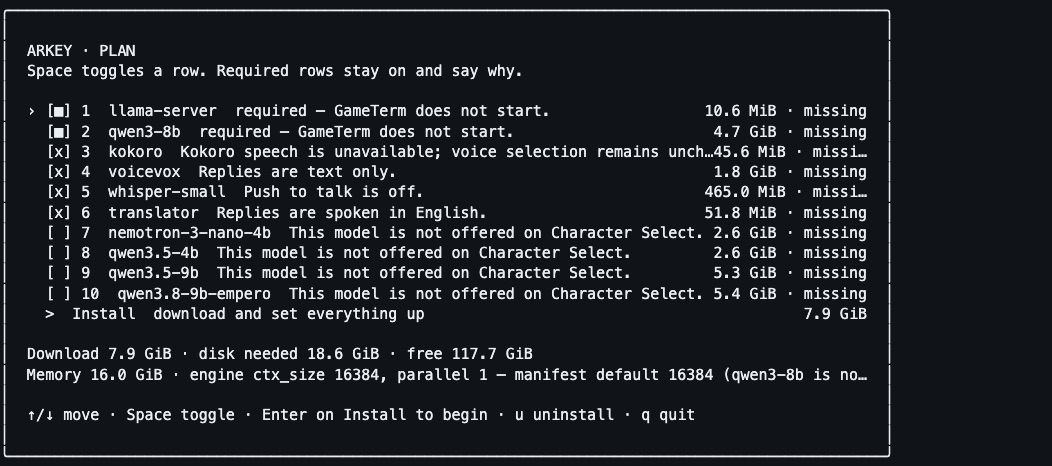
Choose the model
Open Character Select. The INTELLIGENCE bar is at the top, in the middle. It shows the model in use now. It is marked CURRENT MODEL.
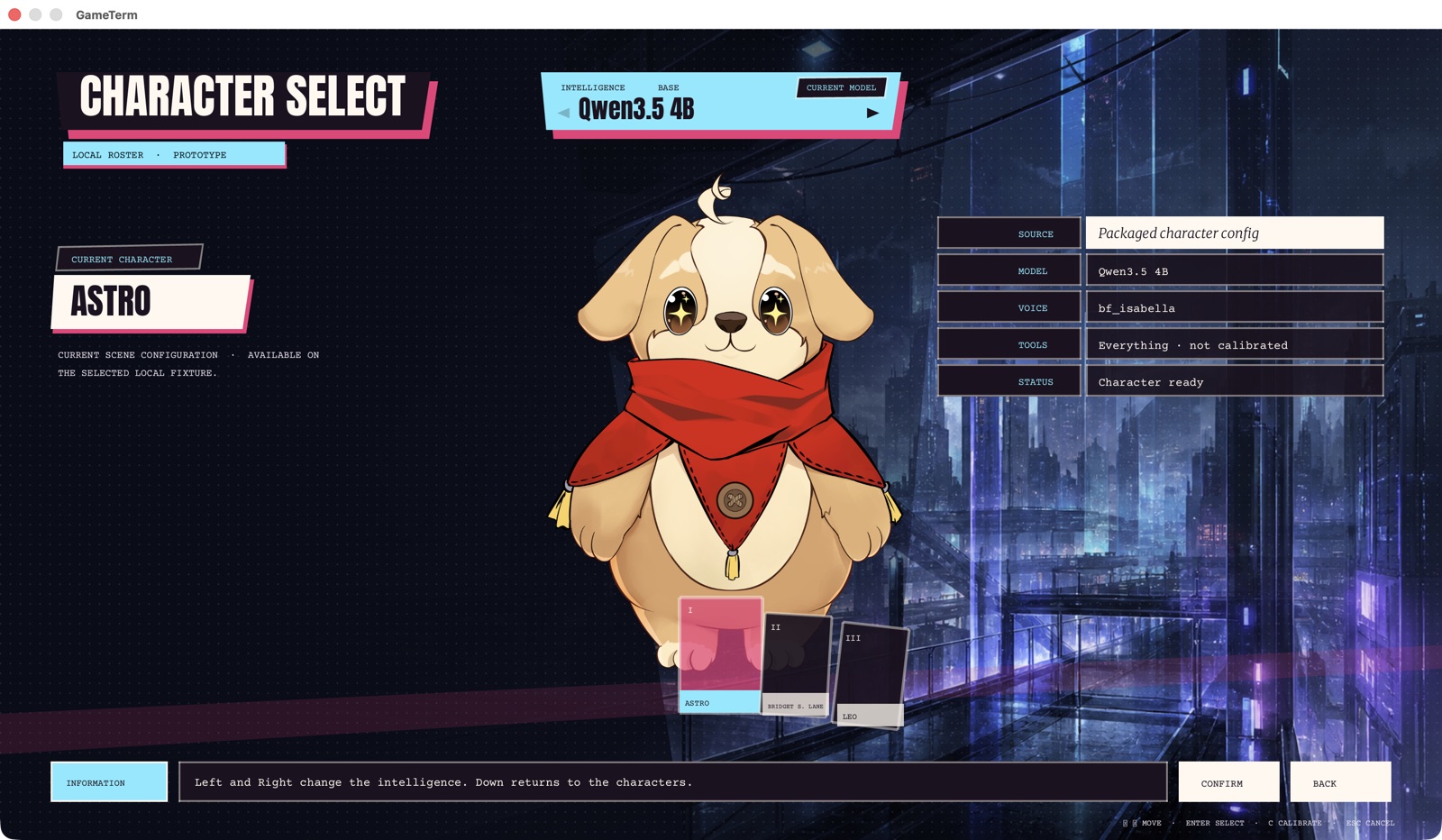
Press the Up arrow key to move from the cards to the bar. Press Left or Right to change the model. The bottom line says what Return will do.
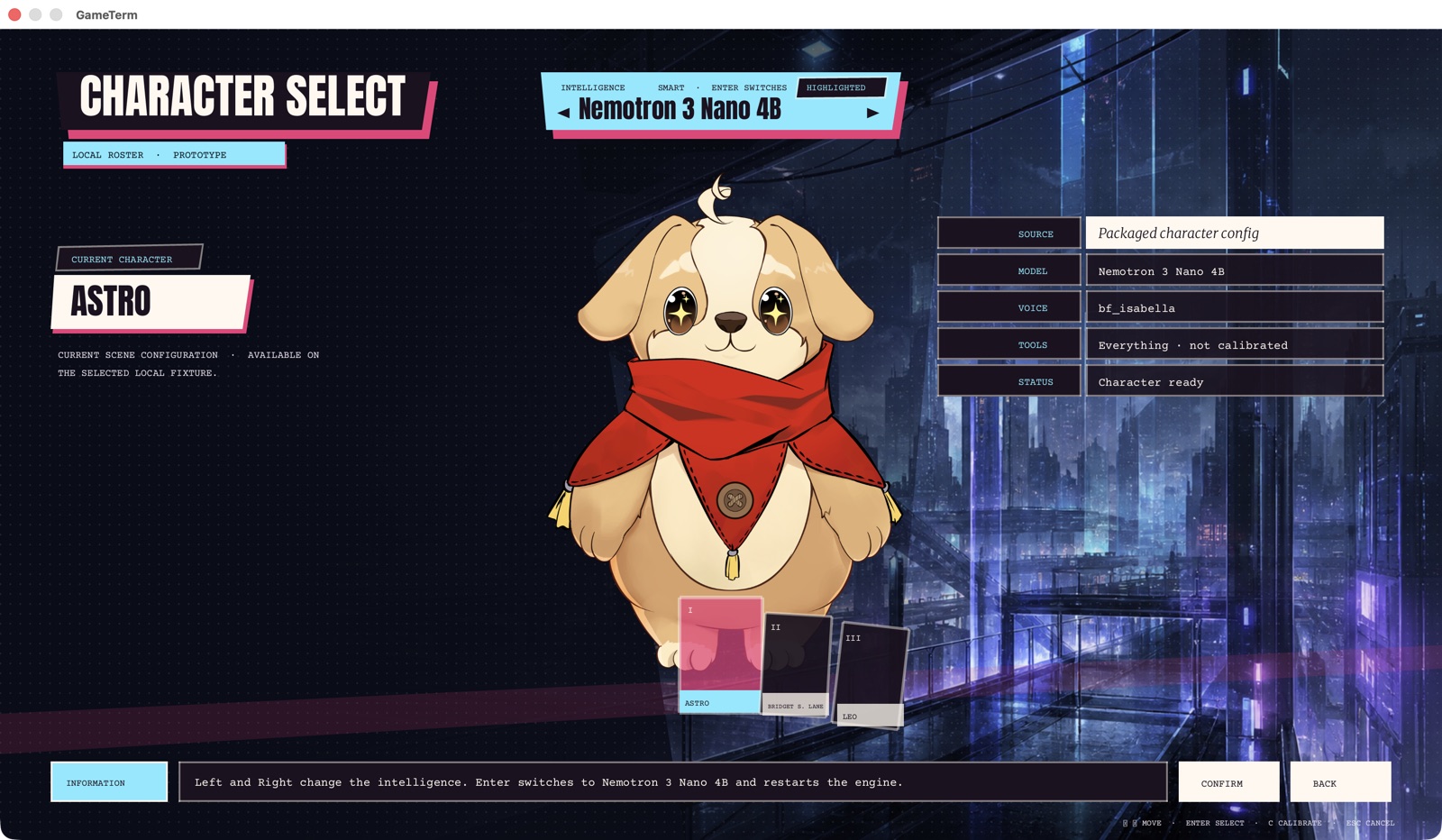
Press Return to switch. GameTerm restarts its engine with the new model. This takes some seconds. Press Down to go back to the cards.
A stronger model on another computer
A model can also run on a second computer with a strong video card. Step 12 explains this.
The next step explains permissions.