Permissions & connections · Step 8 / 12
Permissions, and why they matter
GameTerm can run commands on your Mac. Permissions decide what it may do without asking you.
A command can change files. A command can also delete files. So you decide how much the character may do on its own.
The three choices
Type /permission in the message box. GameTerm asks Update Model Permissions.
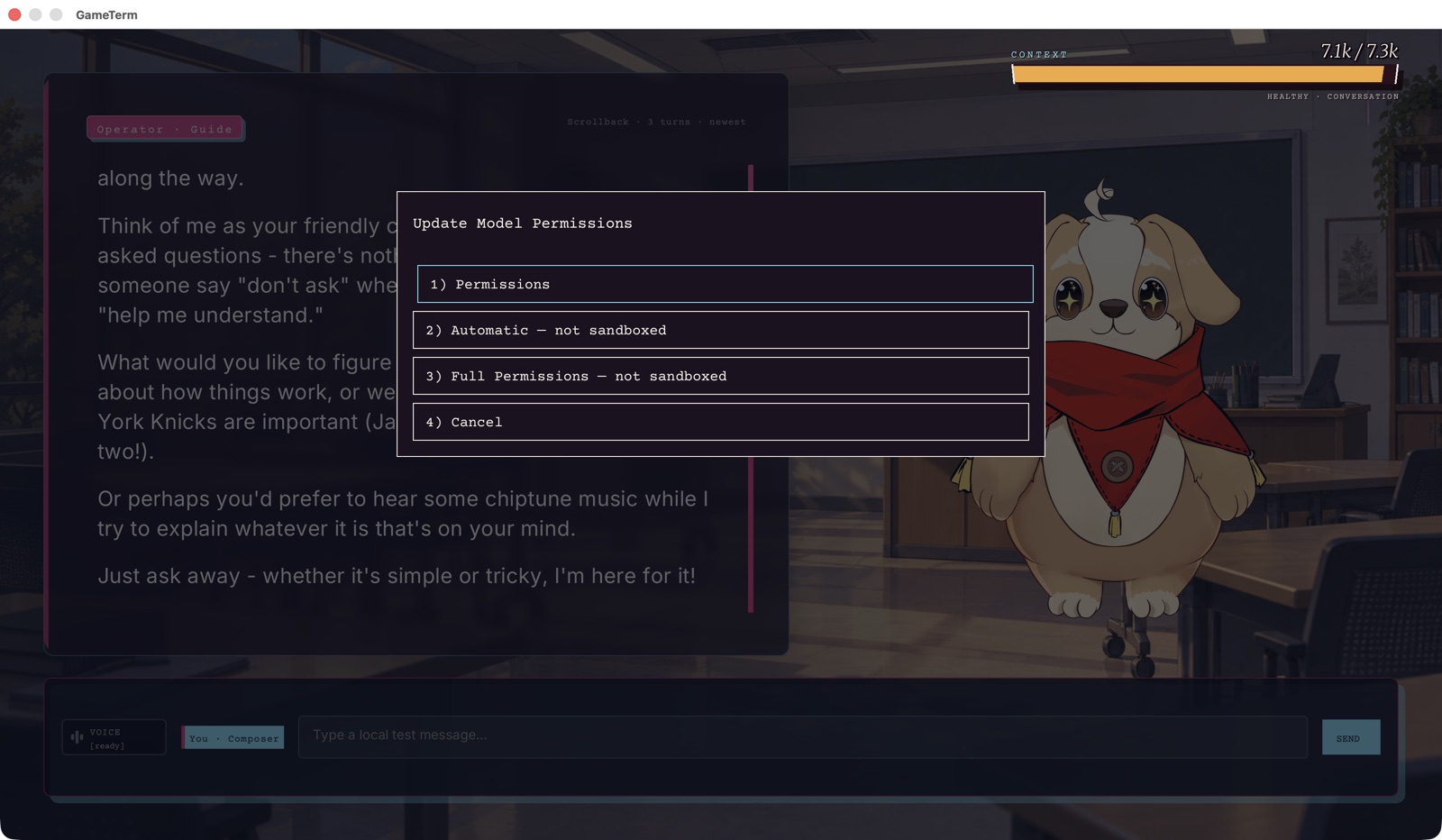
- Permissions. This is the start setting. The character works in a sandbox. It may change files only in its own work folder. Its commands have no internet. It asks you before a command that changes something.
- Automatic, not sandboxed. The character runs commands without asking. It can reach your whole Mac. It still asks you before a command that deletes files.
- Full Permissions, not sandboxed. The character runs every command without asking. This includes commands that delete files.
- Cancel keeps what you have.
Start with Permissions. Move to the others only when you trust what the character does.
When the character asks, a card shows the command. You approve it or deny it. Read the command before you approve it.
Apps the character may open
GameTerm's Setup screen has an APPS tab. It lists the apps on your Mac. Each app is ON, ASK or OFF. The row at the top sets every app at once.
To open Setup, go to the title menu. Choose Settings, then Setup.
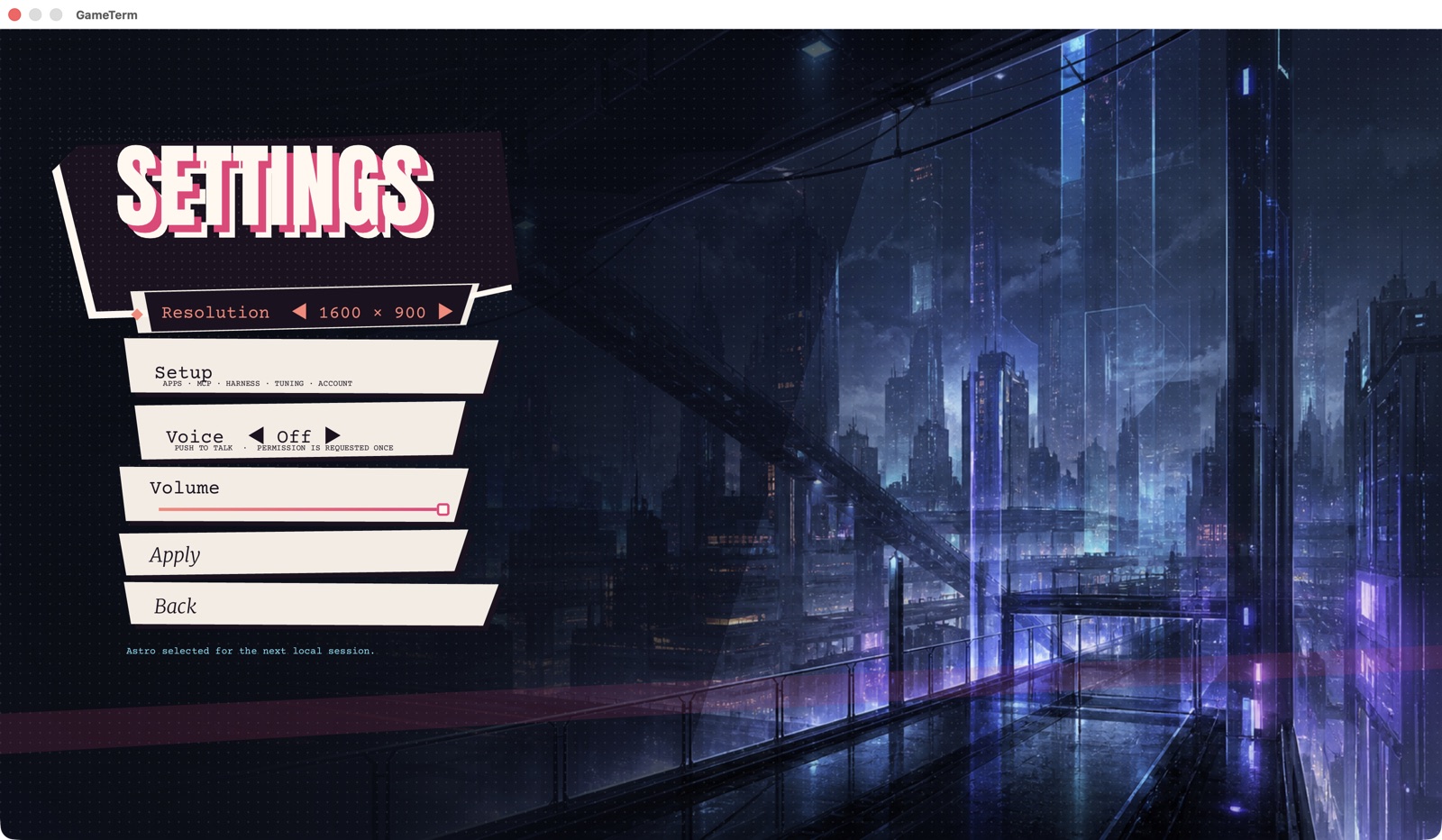

Nothing changes until you press SAVE & EXIT.
macOS permissions
macOS has its own permissions. The ACCOUNT tab in Setup shows them: Accessibility, Automation and Microphone. Press Return on a row to open the macOS pane that changes it.
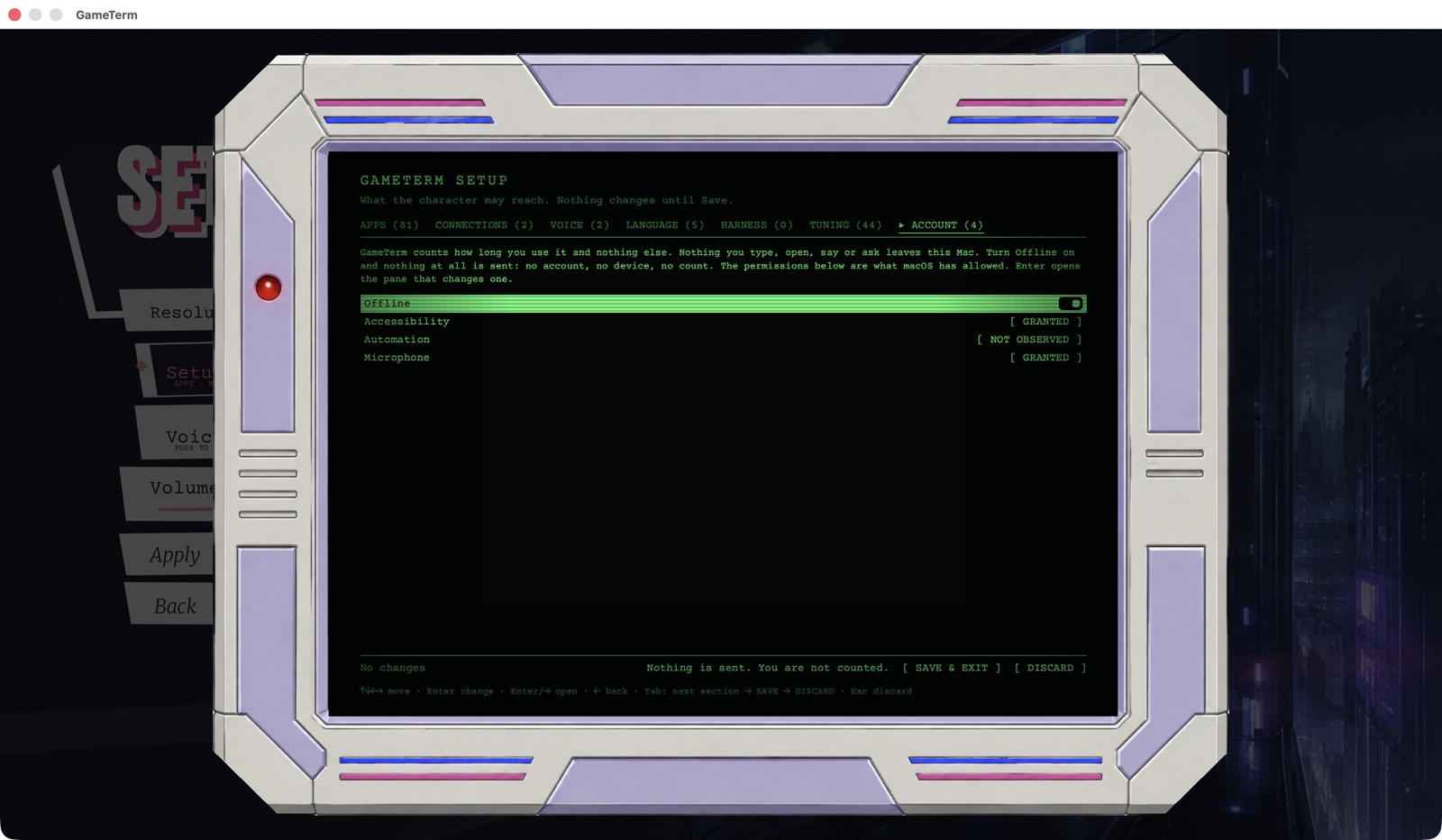
Saying no to a macOS permission turns that one feature off. The rest keeps working.
The next step sets up Spotify, Mac control and web search.