Get started · Step 4 / 12
Launch Arkey and open GameTerm
Arkey is the app that opens GameTerm. Sign in once, choose GameTerm, and press Open.
1. Open Arkey
The installer can open Arkey for you. Later, open the Applications folder in your home folder. Double click Arkey.
2. Sign in
Arkey opens on Sign In. Leave the server on This Mac · Localhost. Type your email and password. Press Proceed.
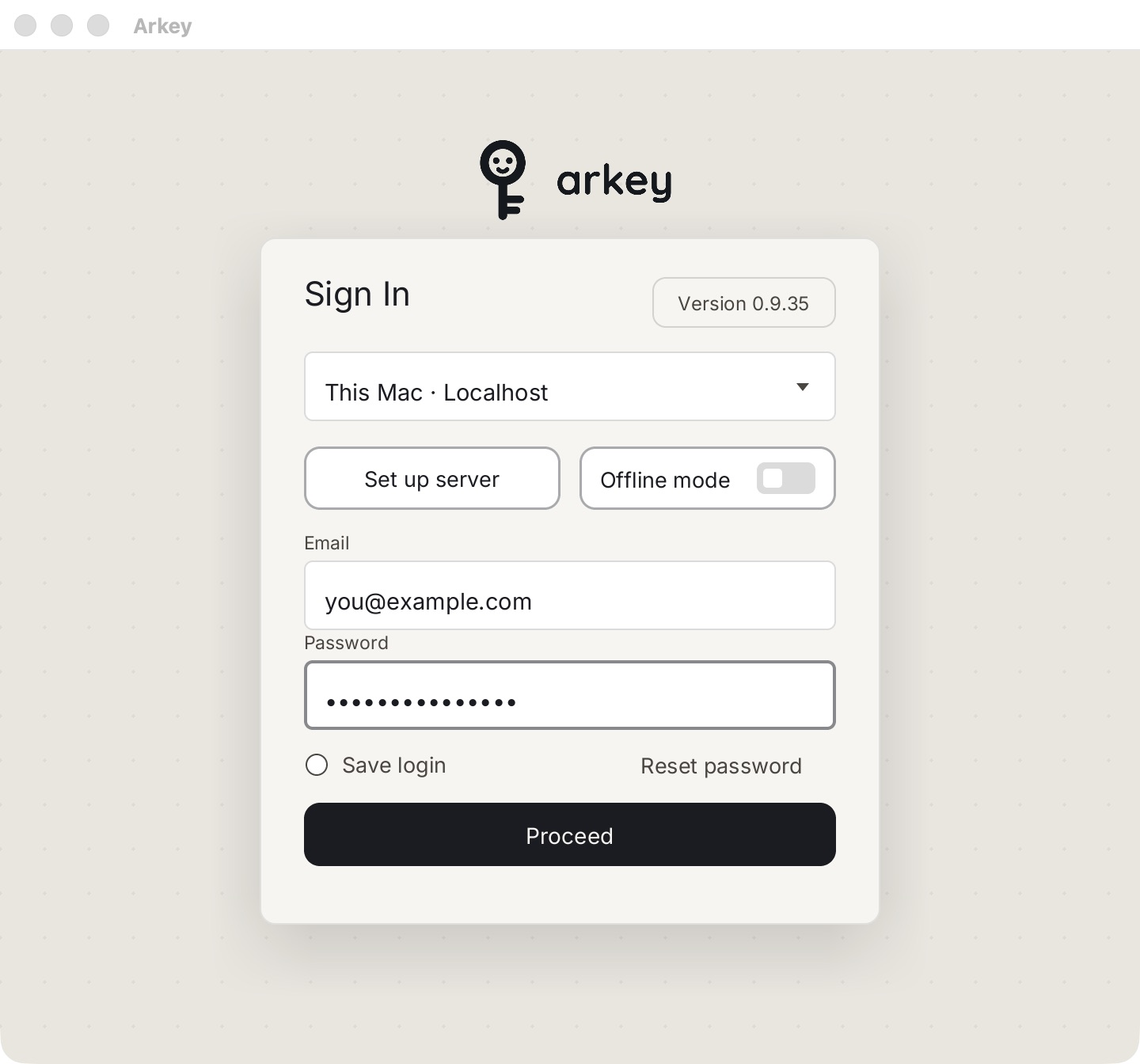
Turn on Save login if you do not want to type it each time.
About Offline mode
Offline mode is a switch on the same screen. With it on, there is no account. Nothing is sent. Services from your account page do not reach GameTerm. Leave it off unless you want this.
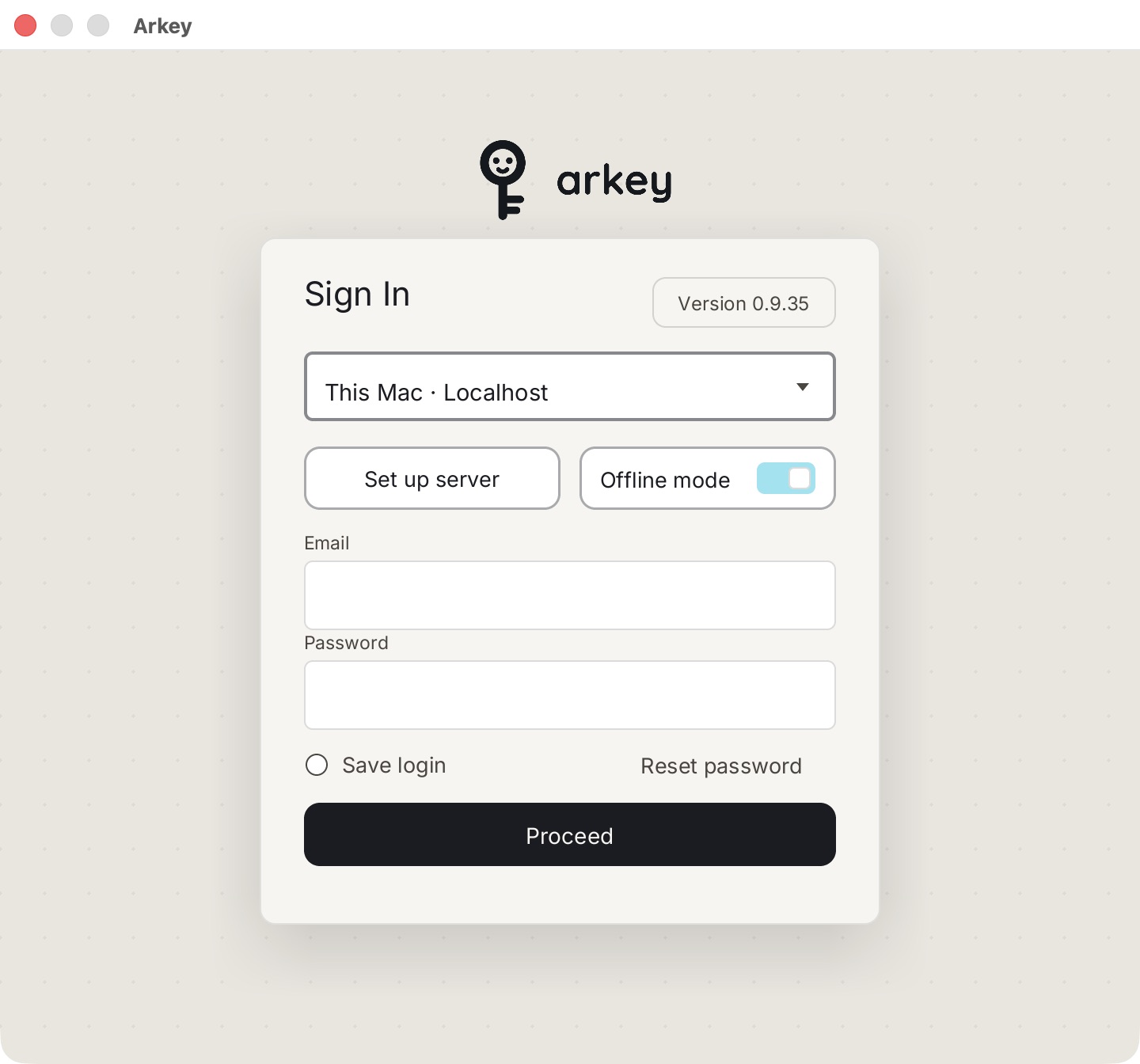
The pictures on this page and the next ones were taken in a test run with Offline mode on. That is why they say Offline. After you sign in, you see your account there instead.
3. Choose GameTerm and press Open
Arkey shows Choose an app. Click the GameTerm card. Press Open.
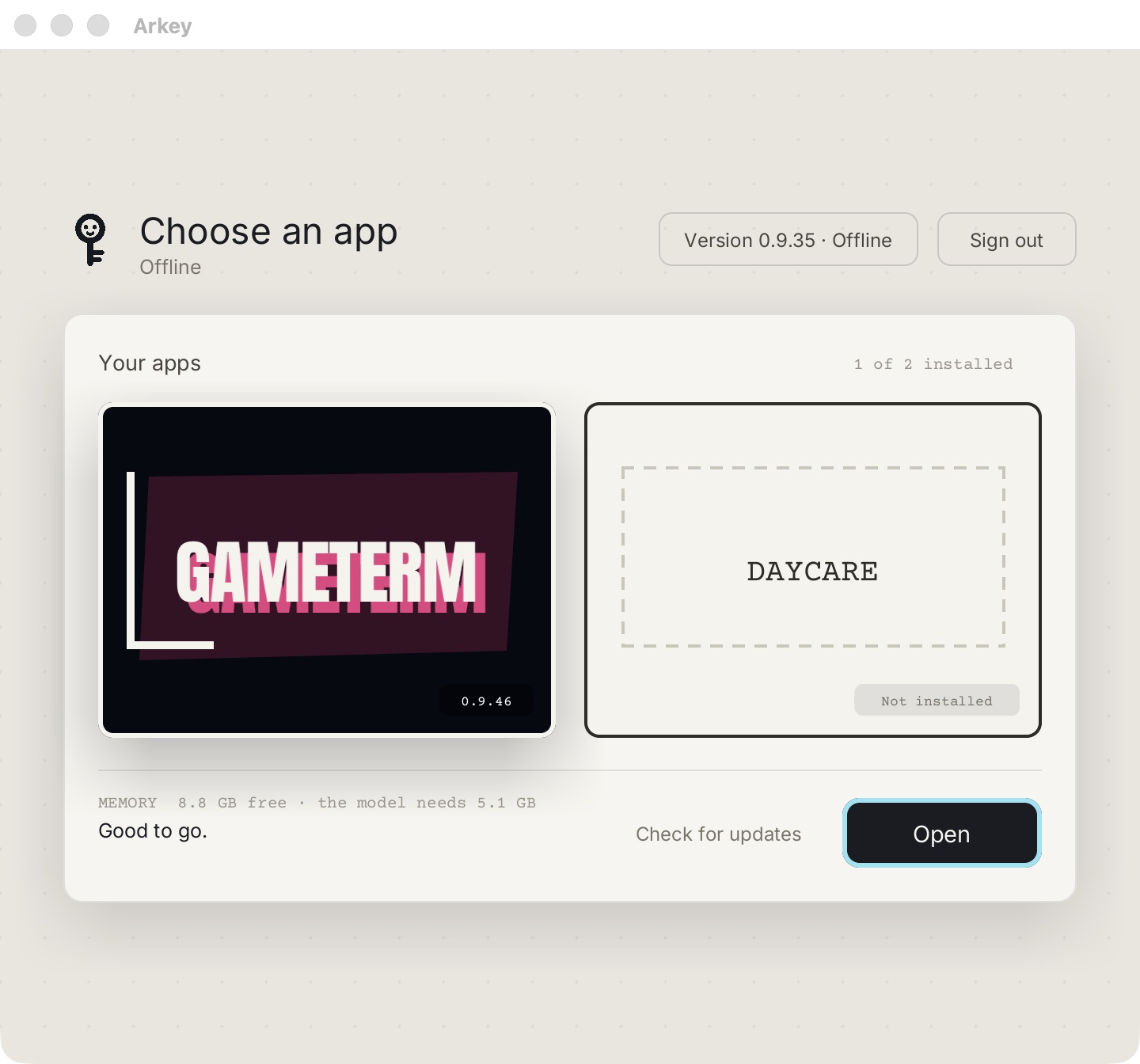
The line under the card shows your free memory. Good to go. means your Mac has enough memory for the model.
4. GameTerm opens
GameTerm shows its title menu. The first start can take a minute or two. GameTerm prepares the character while it starts.

The next step is to pick a character and talk to it.