Get started · Step 3 / 12
Download the installer and install it
Download the installer, sign in with your browser, approve your Mac, and let it install.
1. Download the installer
Sign in on arkey.ai. Your account page opens. Press Download the installer.
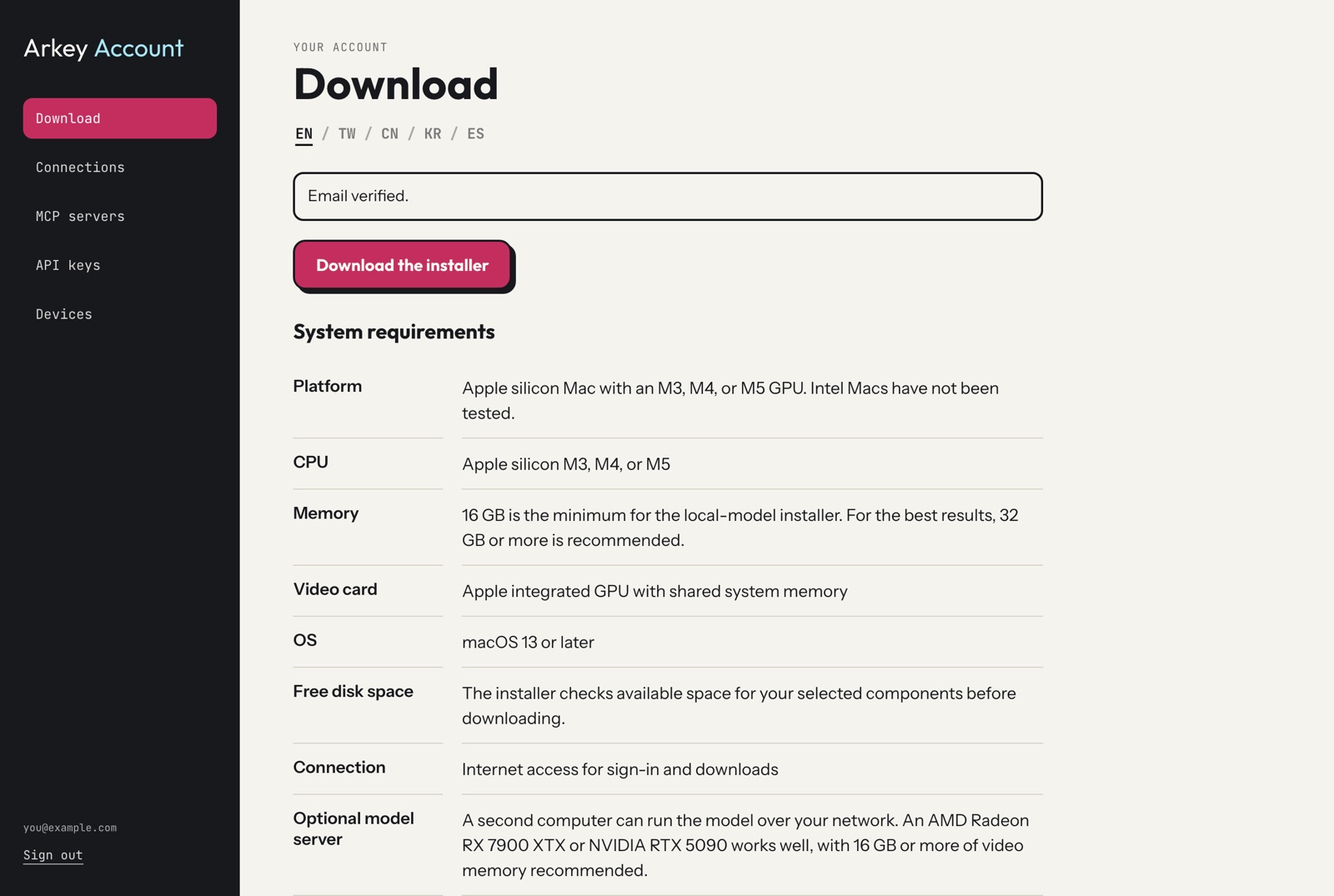
A file downloads. Open it. It shows the Arkey Installer app. Double click the app.
2. The installer opens in Terminal
Terminal is the Mac app with text on a dark screen. The installer runs inside it. You use the arrow keys and the Return key. You do not type commands.
The first screen asks how to sign in. Choose 1 Sign in with your browser. Press Return.
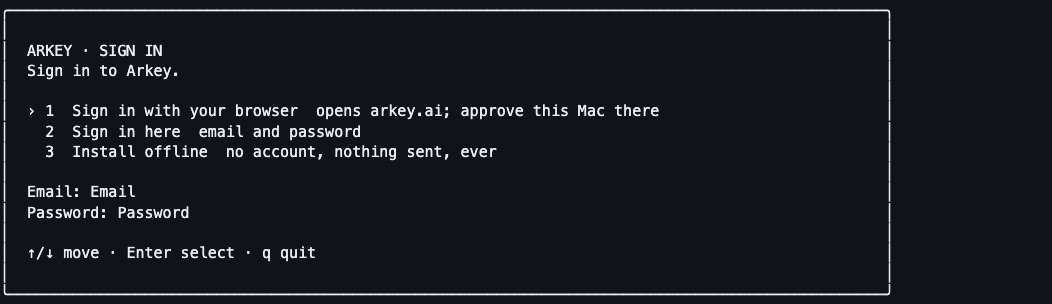
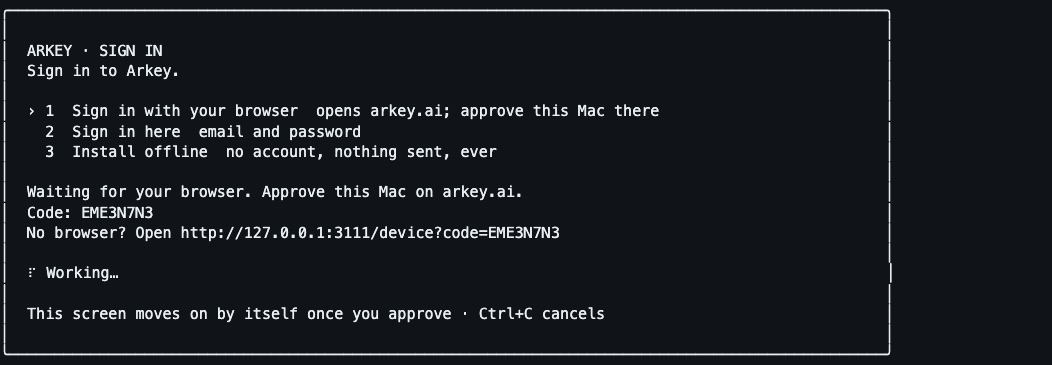
3. Approve your Mac on arkey.ai
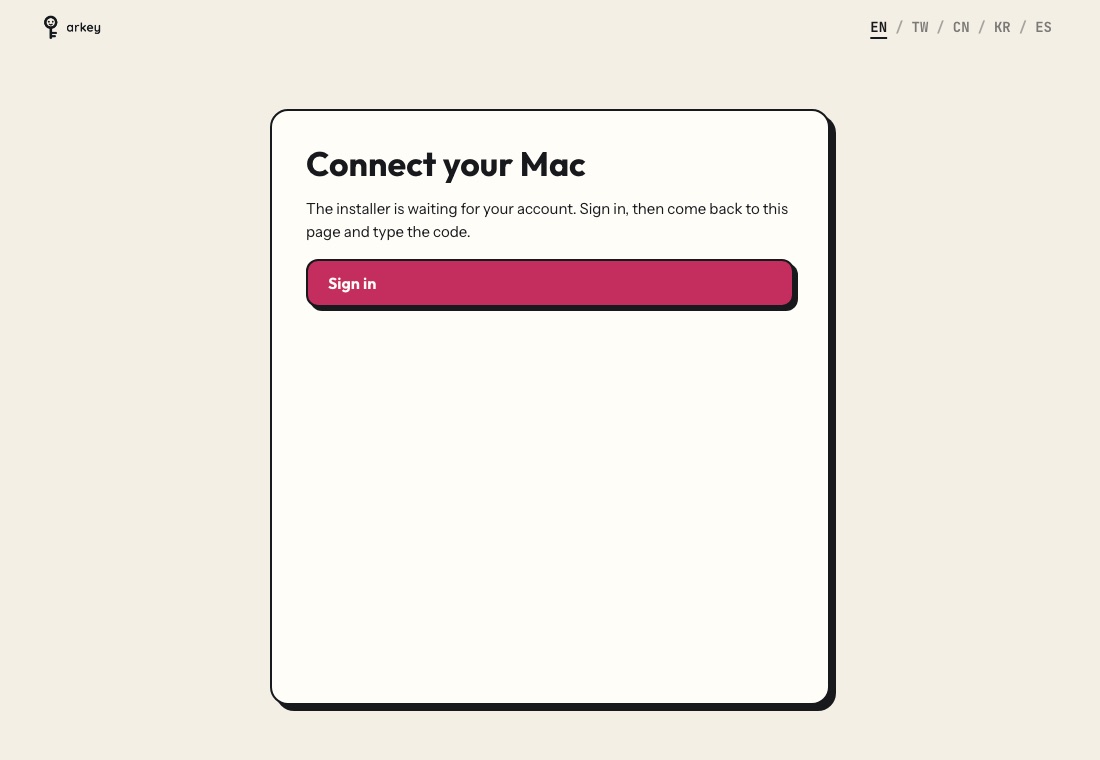
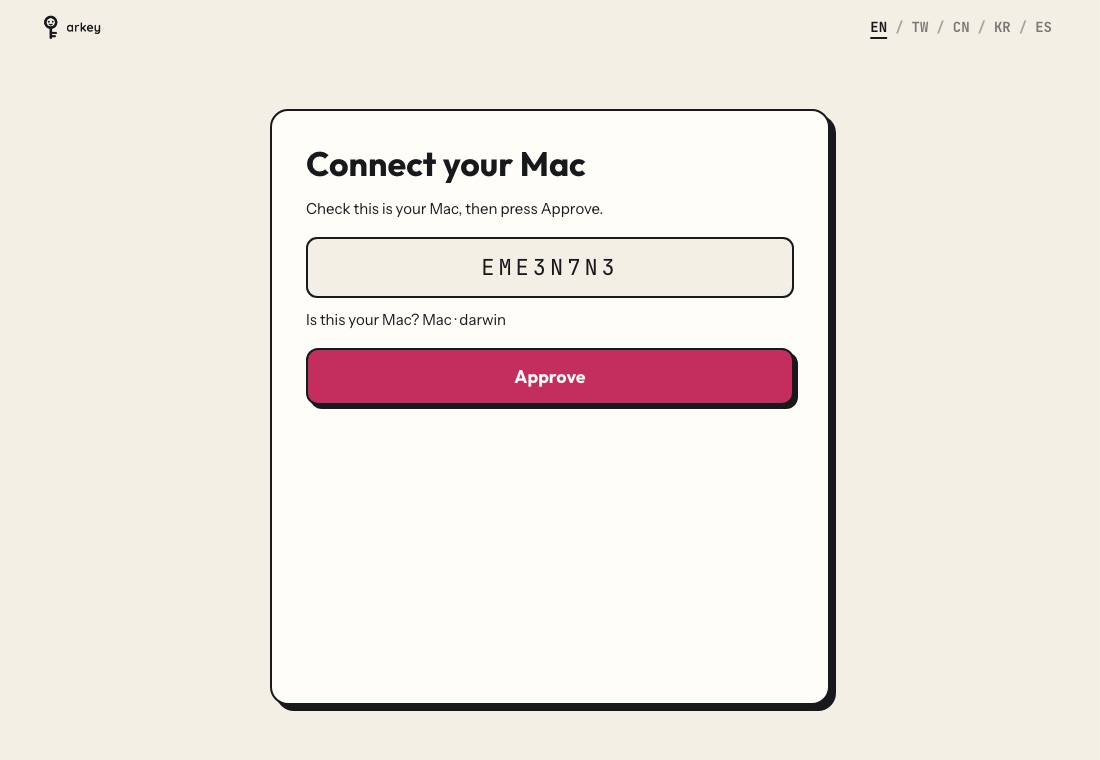
Your browser opens a page called Connect your Mac. The installer shows a code. It waits for you.
If the page asks you to sign in, press Sign in. Sign in with your email and password.
The page shows the same code as the installer. Check that the codes match. Press Approve.
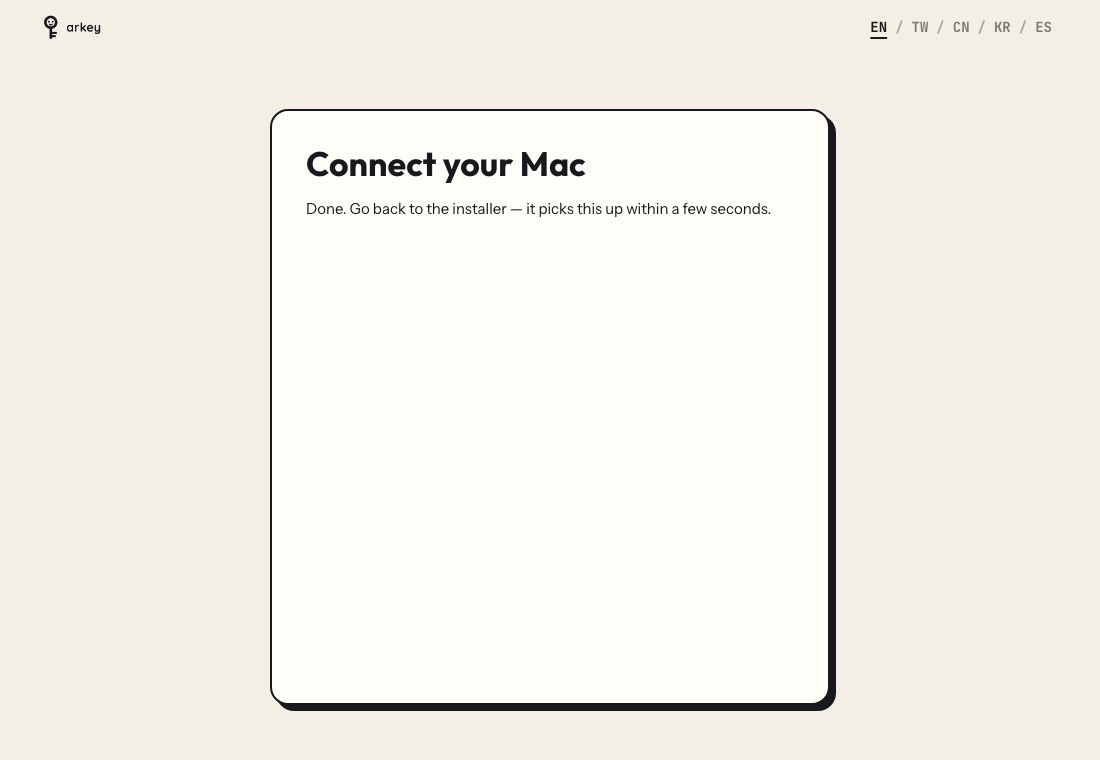
The page says Done. Go back to Terminal.
4. It moves on by itself
You do not press anything in the installer. It sees the approval within a few seconds. It moves on to the next screen by itself.
5. Choose what to install
The installer shows a list. The rows with a filled box are needed. You cannot turn them off. The other rows are yours to choose. Each row says what you lose without it.
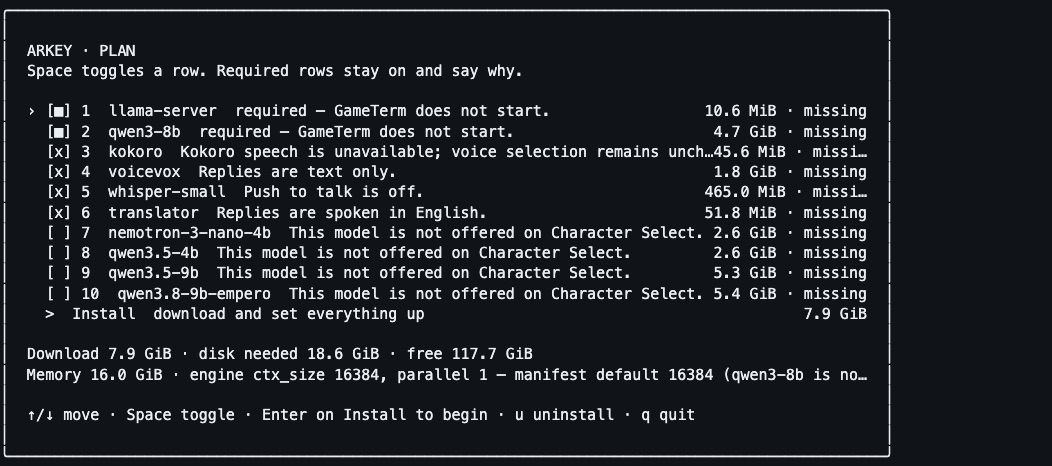
Press Space to turn a row on or off. Move to Install and press Return. The download can take a while.
6. Permissions and the end
The installer explains two macOS permissions: Microphone and Automation. Each has one sentence. GameTerm asks for each one again the first time it needs it.
At the end, choose Open Arkey. The installer puts Arkey in the Applications folder in your home folder.
The next step is to open GameTerm from Arkey.